Cluster Storage Image Upload
The Storage page allows Cluster Administrators to enable access to removable USB storage devices connected to the Corellium Controller.
When this feature is enabled, users can browse files stored on attached USB media directly from supported device-creation workflows without uploading the files from their local workstation.
Removable USB media is mounted as read-only. Corellium does not modify or write data to attached storage devices.
Enable Removable USB Storage Access
- Sign in as a Cluster Administrator.
- Open Cluster Admin.
- Select the Storage tab.
- Enable Allow read-only access to removable USB media.
The setting is enabled by default.
When enabled, users can select files from removable USB media connected to the cluster.
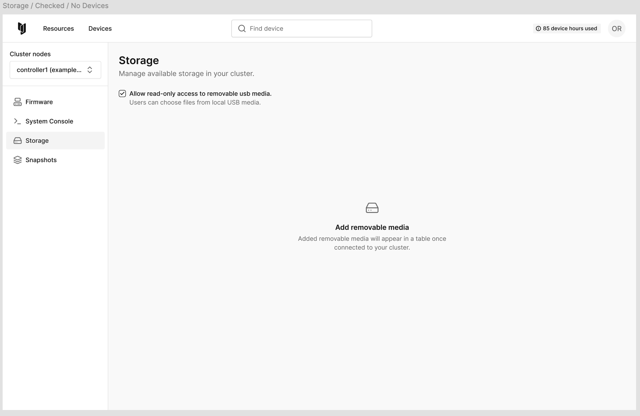
No USB Media Connected
When removable USB access is enabled but no supported USB media is connected, the page displays: Add removable media
Added removable media will appear in a table once connected to your cluster.
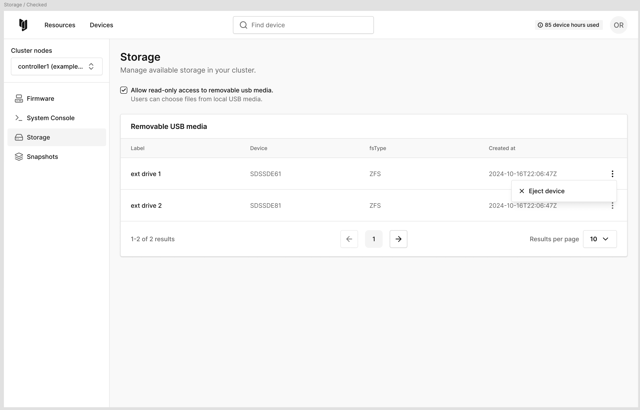
USB Media Connected
When removable USB access is enabled and supported USB media is connected, Corellium displays the device in the Removable USB media table.
The table includes the following columns:
| Column | Description |
|---|---|
| Label | Volume label of the connected storage device |
| Device | Mounted device path |
| fsType | Filesystem type |
| Created At | Time the device was detected |
| Actions | Available actions, including Eject Device |
Selecting a File During Device Creation
When removable USB access is enabled, supported device creation workflows (such as Cellebrite Image and UFD) provide a Select a file option.
To select a file:
- Begin creating a supported device.
- Locate the Cellebrite Image or UFD section.
- Click Select a file.
- Browse the attached USB media or upload a local file.
- Select the desired file.
- Click Open.
Select a File Dialog
The Select a file dialog includes:
- Select a file title
- Close (X) button
- Directory browser
- Current path indicator
- Search for files search field
- Divider labeled or
- Local upload section
- Cancel button
- Open button
The upload section displays:
Click to upload file or drag and drop
.zip(max 200 GB).
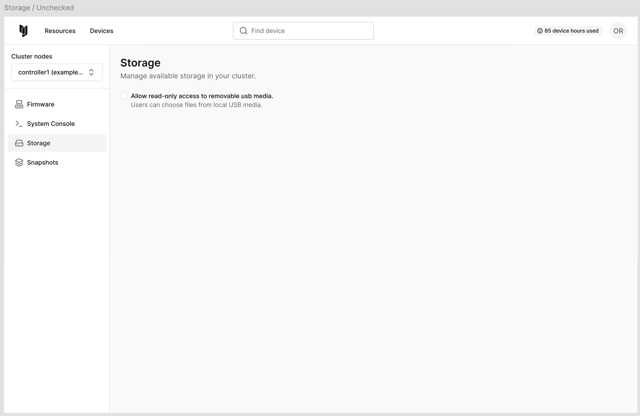
When USB Access Is Disabled
When Allow read-only access to removable USB media is disabled:
- No removable media table is displayed.
- Controller-attached USB devices cannot be browsed.
- Device creation opens the operating system's standard file picker.
- Users can continue uploading files from their local workstation.
Troubleshooting
No USB Device Appears
Verify that:
- Allow read-only access to removable USB media is enabled.
- The USB device is connected to the Controller.
- The operating system has mounted the device.
- The filesystem is supported.
- Refresh the page after connecting the device.
Cannot Browse USB Files
Verify that:
- USB access is enabled.
- The USB device appears in the Storage table.
- You selected Select a file instead of the local upload control.
- The current workflow supports server-attached storage.
Unable to Eject a Device
If the device cannot be ejected:
- Verify no active operation is using files on the device.
- Retry the eject operation.
- Wait until the device disappears from the Storage table before disconnecting it.
API Reference
| Method | Endpoint | Description |
|---|---|---|
GET | /api/v1/cluster/storage | Lists mounted removable storage devices |
PATCH | /api/v1/cluster/config | Enables or disables removable USB access |
POST | /api/v1/cluster/storage/:id/eject | Safely ejects a removable storage device |