Cluster Snapshot Management
Cluster Snapshot Management introduces a centralized interface for managing device snapshots across clusters. This feature consolidates snapshot visibility and management into a single location, enabling more efficient administration.
To access cluster snapshots, you must be set as a Cluster Administrator.
View & Manage Cluster Snapshots
While logged in as a Cluster Administrator, click your profile in the top right corner and select Cluster from the dropdown menu. Then select Snapshots.
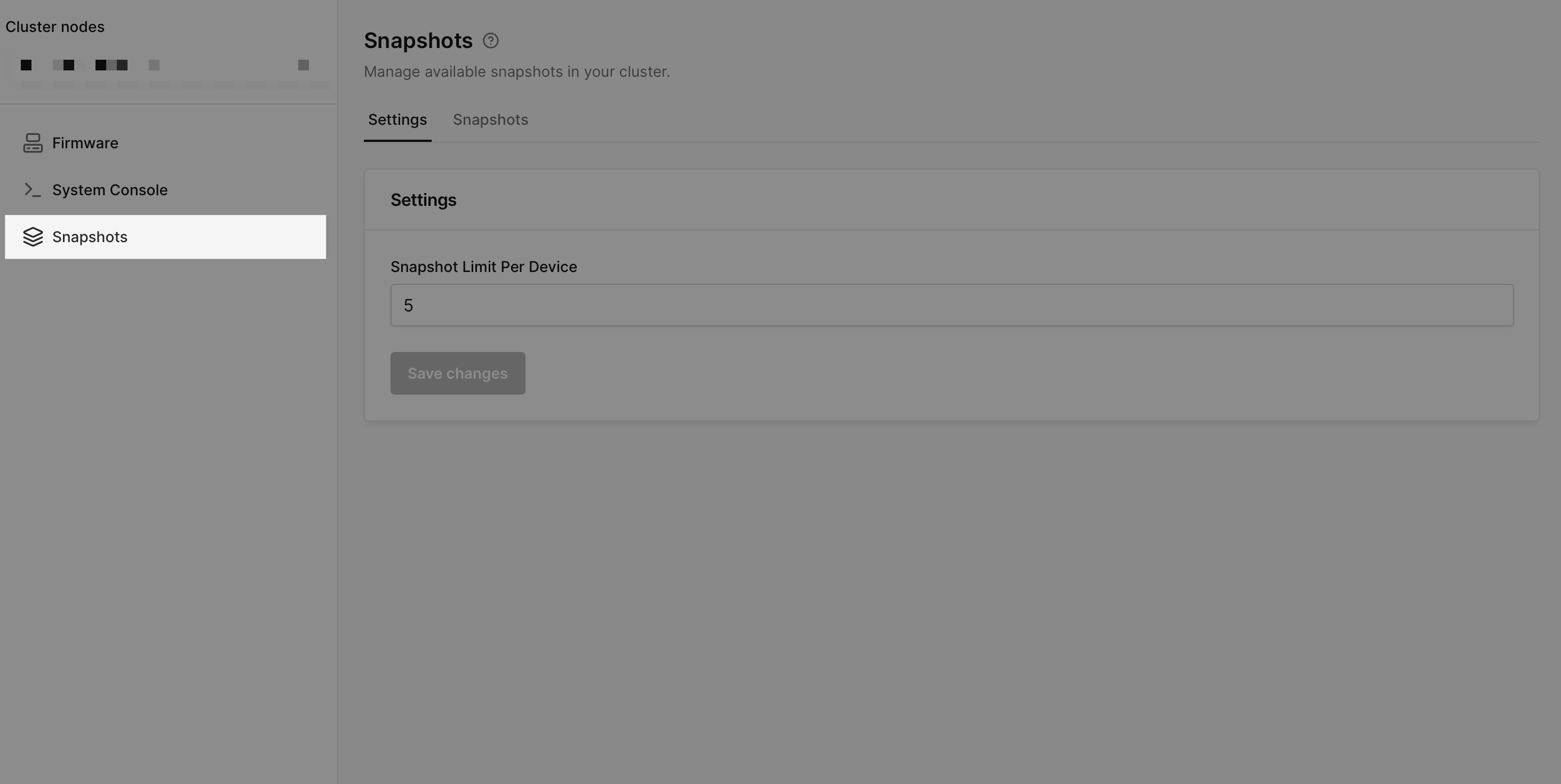
The Settings tab is used to specify the limit of snapshots a single device can have.
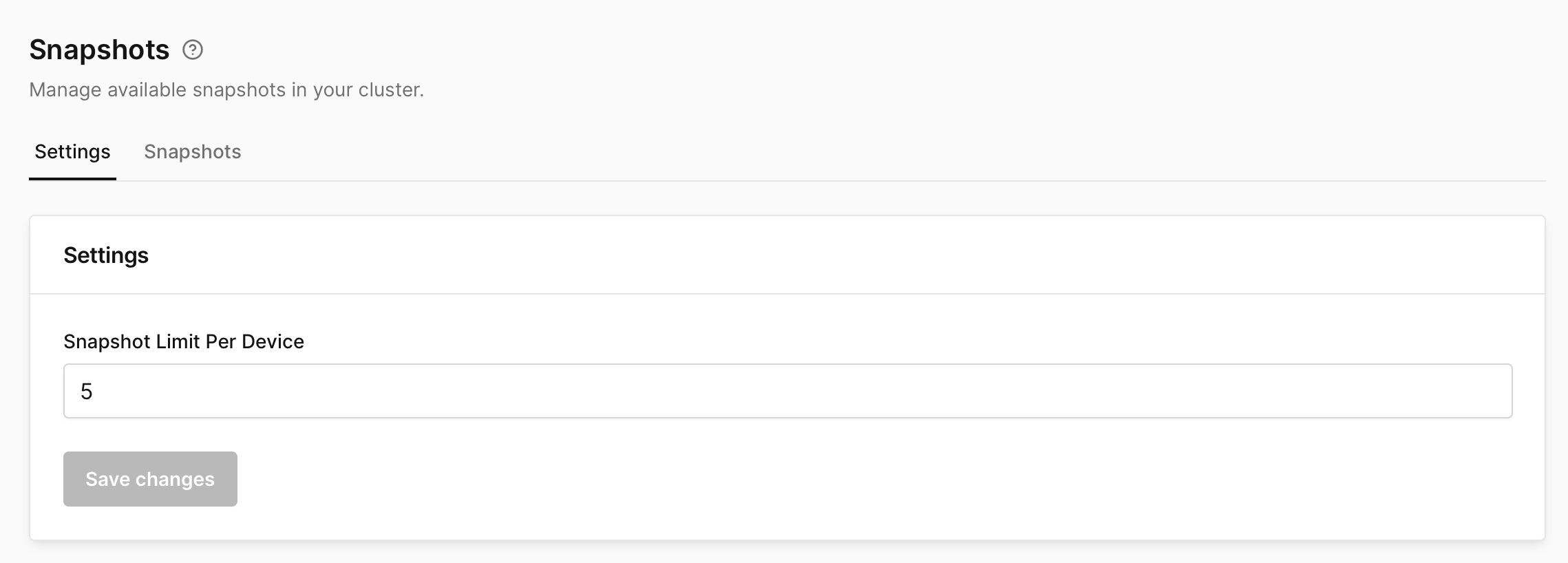
Once the configured snapshot limit is reached for a device, no additional snapshots can be created until existing snapshots are deleted or the limit is increased.
In the Snapshots tab, you can view and manage all device snapshots across the cluster.
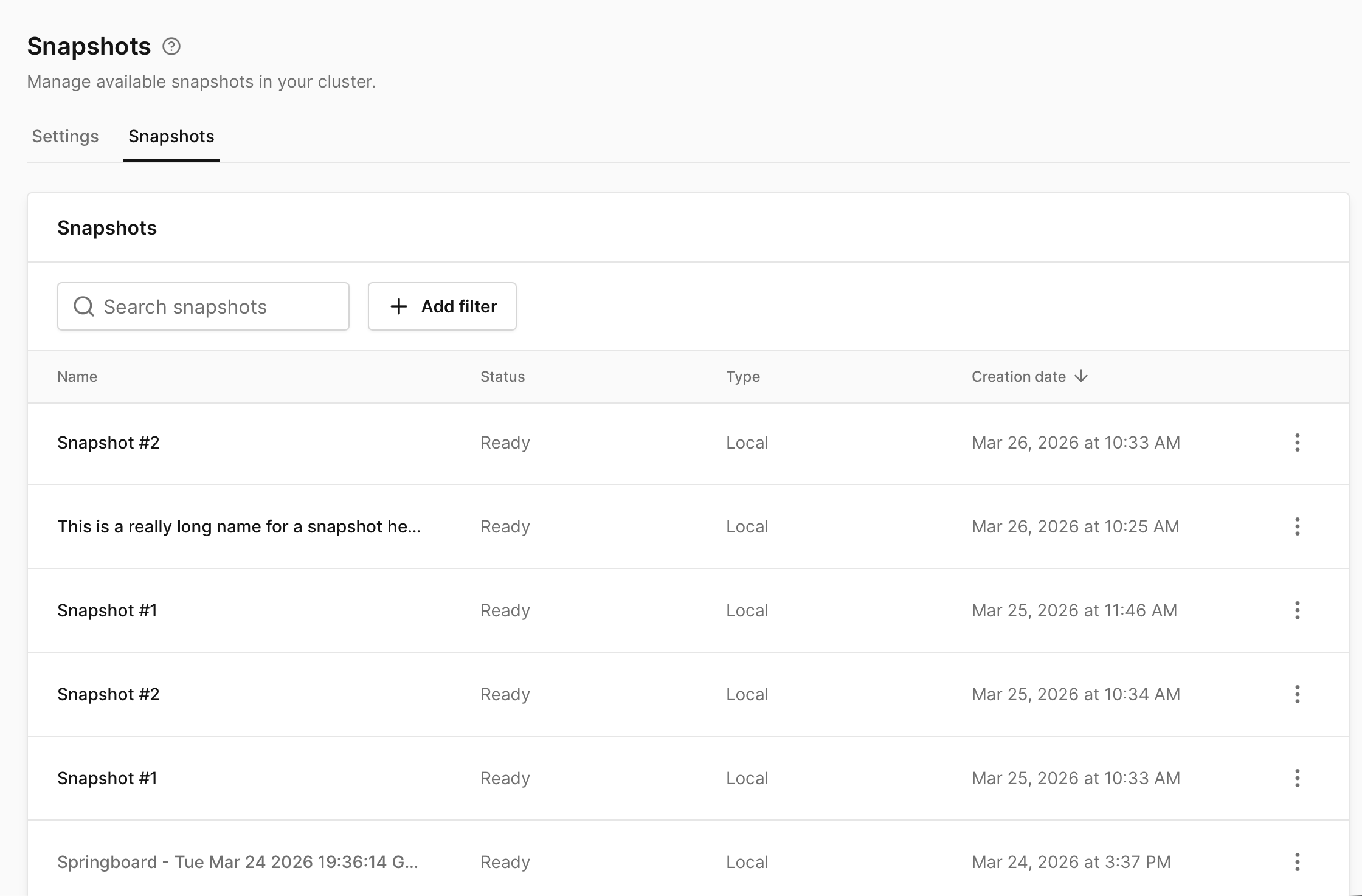
Snapshot List Overview
The Snapshots table provides a centralized view of all snapshots with the following information:
- Name – The name of the snapshot
- Status – Indicates the current state (e.g. Ready)
- Type – The snapshot type (e.g. Local)
- Creation date – When the snapshot was created
Each row represents a snapshot from a device within the cluster. You can quickly sort the list of snapshots by clicking on one of the above values. For example, clicking on Creation date sorts snapshots by their creation date.
Searching and Filtering Snapshots
Use the search bar to quickly locate snapshots by name.
Click Add filter to refine the snapshot list using additional criteria. Available filters include:
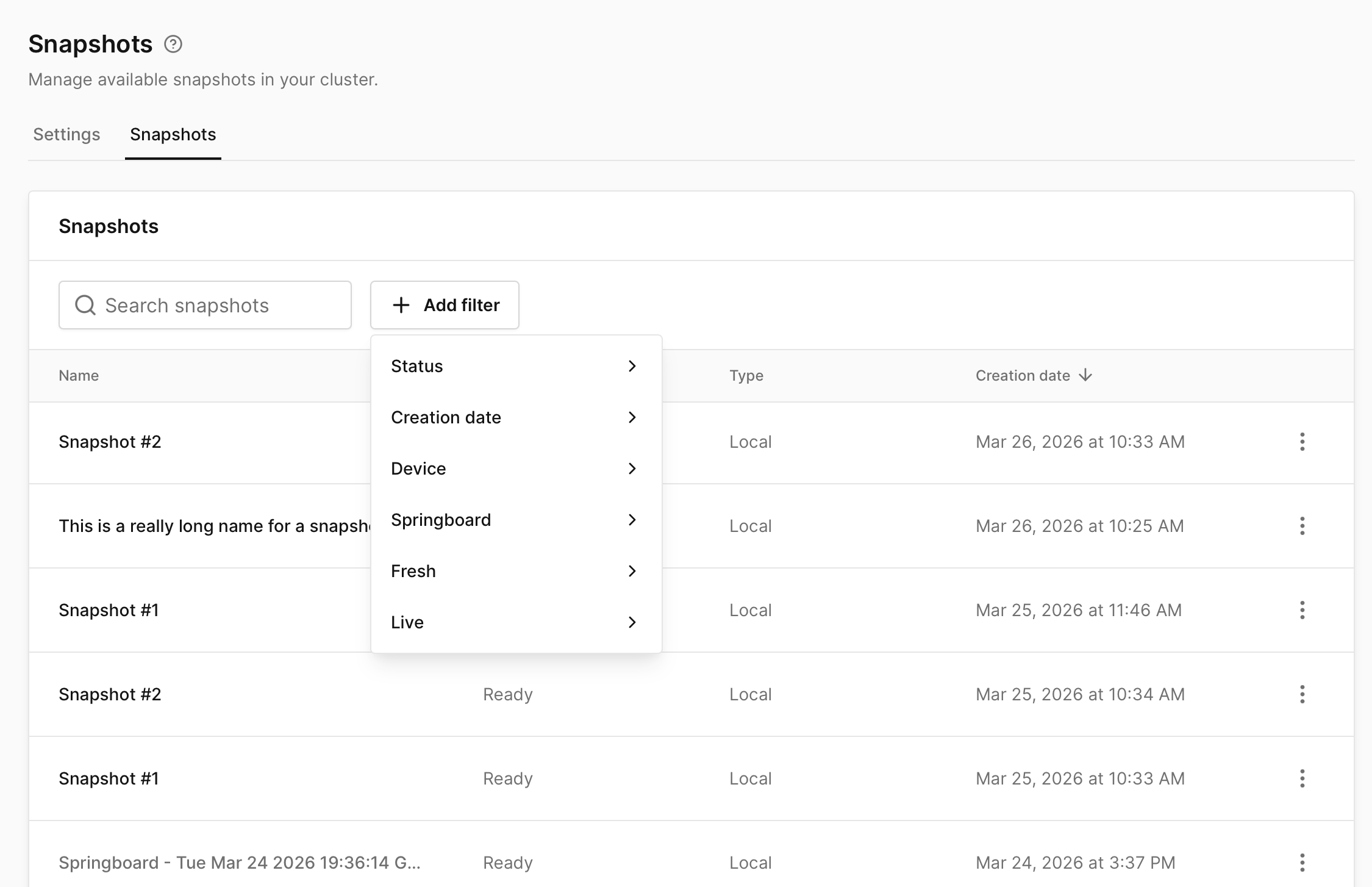
- Status – Filter snapshots by their current state (e.g. Ready)
- Creation date – Filter snapshots based on when they were created
- Device – Filter snapshots from a specific device
- Springboard – Filter snapshots based on whether they are Springboard snapshots
- Fresh – Filter snapshots based on whether they are Initial Snapshots
- Live – Filter snapshots based on whether they are Live snapshots
Some filters provide selectable values (e.g. True or False) to further refine results.
You can apply multiple filters at once to narrow down the snapshot list. To remove filters, click Clear all.
Managing Snapshots
Each snapshot includes a menu ⋮ on the right-hand side that provides management actions and additional details.
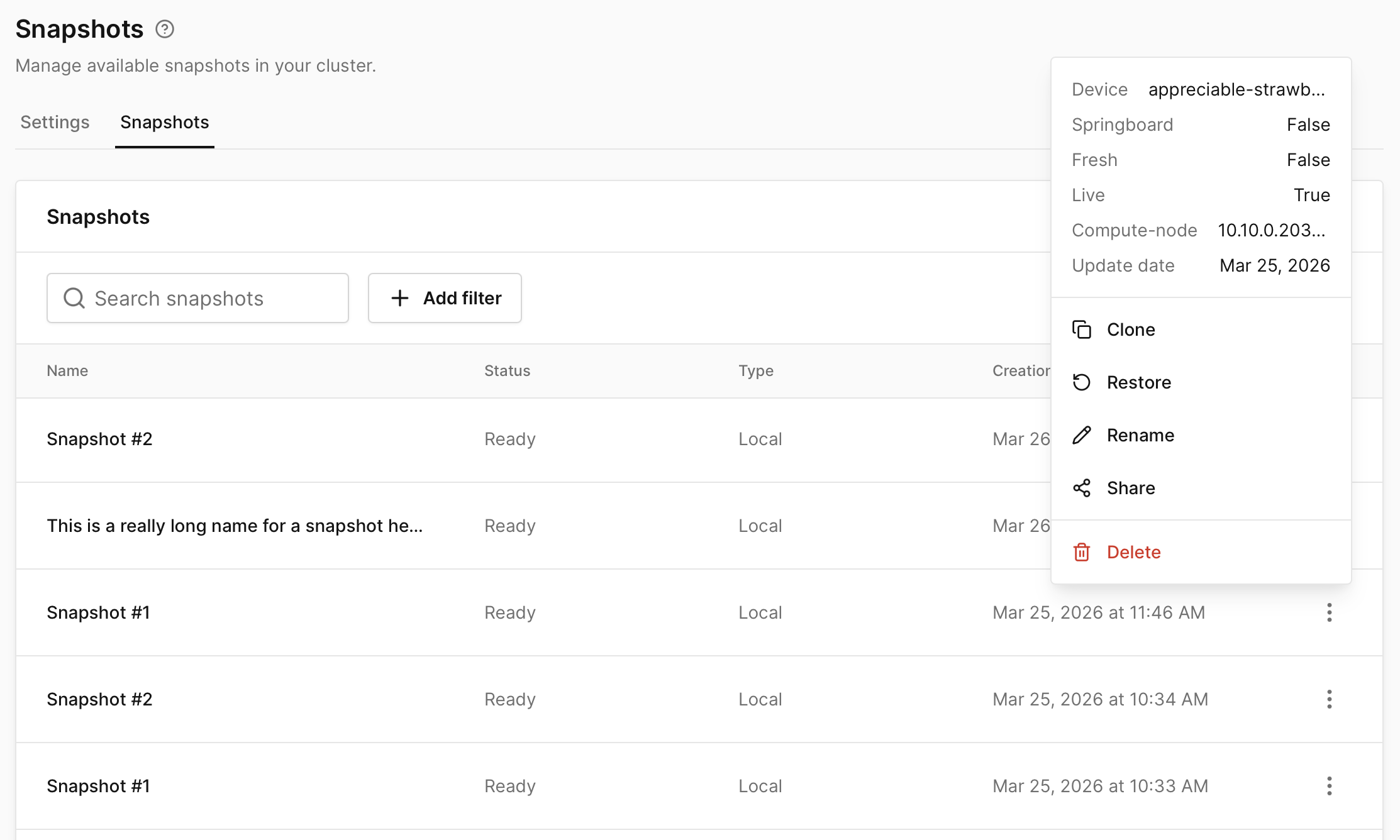
Selecting a snapshot reveals metadata such as:
- Device – The device the snapshot belongs to
- Springboard - Whether the snapshot is a Springboard snapshot
- Fresh - Whether the snapshot is an Initial snapshot
- Live - Whether the snapshot is a Live snapshot
- Compute node – The compute node where the snapshot is stored
- Update date – The last time the snapshot was modified
From the actions menu, you can perform the following operations. Certain actions vary depending on the snapshot type.
- Clone – Creates a new device from the snapshot in the same project as the source device
- Restore – Restores a device to the selected snapshot state
- Rename – Updates the snapshot name
- Share – Shares the snapshot with other users
- Delete – Permanently removes the snapshot
Snapshot Types
-
Standard snapshots – Capture the state of a powered off device (non-live). Support all management actions listed above.
-
Initial (Fresh) snapshots – Capture a device before it has fully completed the boot process. Support cloning and restoring, but cannot be deleted individually and must be removed by deleting the source device.
-
Springboard snapshots – Allow iOS devices to be created from a near-ready state, significantly reducing the time required to reach the home screen. Can only be deleted and are required for Rapid Start for a specific device model and build.
-
Live snapshots – Capture the state of the virtual device's RAM. Support all management actions available to standard snapshots. See Live snapshots for more details. Only restoring a live snapshot resumes a device exactly as it was.